
 then 'Add to home screen'
 then 'Add to home screen'

Common PC Problems and Simple Solutions
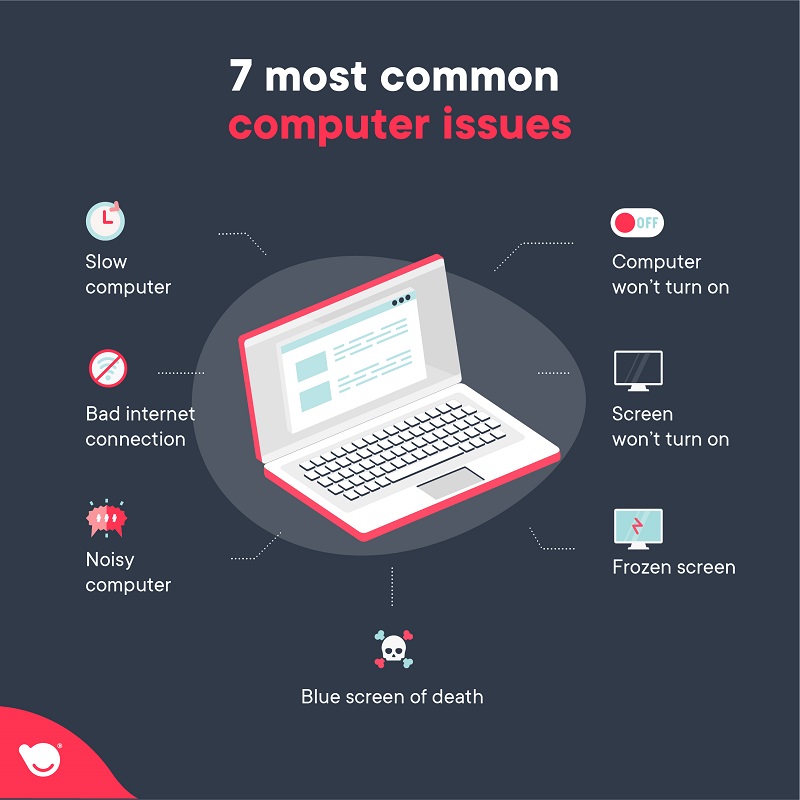
In our digital age, computers have become an indispensable tool in our daily lives, whether for work, study, or entertainment. However, computer use is not without some common problems that users may encounter. From slow performance to internet connection issues, these problems can be frustrating and hinder workflow. Fortunately, many of these issues can be resolved with simple steps without the need for deep technical expertise. This article aims to provide a comprehensive guide for beginner users on how to troubleshoot and fix the most prominent common computer problems, helping to improve their devices’ performance and ensure a smooth and stable user experience.
1. Slow Performance
Slow computer performance is one of the most common and annoying problems. This slowness can manifest as long application loading times, slow response to commands, or frequent system freezes. There are several potential causes for slow performance, ranging from excessive programs and resource consumption to insufficient storage space or the presence of malware.
Causes of Slow Performance:
•Background Programs: Many applications start automatically with system startup and continue to run in the background, consuming significant processor and memory resources .
•Lack of Storage Space: When the hard drive is full, it negatively affects system performance, as the operating system needs free space for temporary operations and temporary storage files .
•Malware and Viruses: Malware can consume significant system resources, leading to slow performance and data leakage .
•Outdated or Corrupt Drivers: Drivers are programs that allow the operating system to interact with hardware components. If these programs are old or corrupt, it may affect device performance .
•Hard Drive Fragmentation: In traditional hard drives (HDD), file parts can be scattered across the disk, increasing the time required to access them and affecting performance .
Suggested Solutions:
•Manage Startup Programs: Disable unnecessary programs that start with system boot. You can do this through Task Manager in Windows, or Users & Groups settings in Mac .
•Free Up Storage Space: Delete unnecessary files, empty the recycle bin, and uninstall programs you don’t use. You can also use built-in disk cleanup tools in the operating system .
•Scan and Remove Malware: Use a reliable antivirus and anti-malware program to perform a comprehensive system scan and remove any detected threats .
•Update Drivers: Make sure all drivers for your device components are updated. You can do this manually through the device manufacturer’s website or by using automatic driver update tools .
•Defragment Hard Drive: If you are using a traditional hard drive, defragment it regularly using the built-in defragmentation tool in Windows. This does not apply to Solid State Drives (SSD) .
•Restart Your Computer Regularly: Regular restarts help clear temporary memory and close unnecessary processes, improving overall performance .
2. Computer Won’t Turn On
The problem of a computer not turning on is one of the most alarming issues, as it prevents the user from accessing their device and data. The causes can be numerous, ranging from simple power issues to internal component failures.
Causes of Computer Not Turning On:
•Power Source Issues: The cable may not be properly connected, the electrical outlet may not be working, or the Power Supply Unit (PSU) itself may be faulty .
•Monitor Issues: The computer may be running, but the monitor is not displaying anything due to a problem with the monitor cable or the monitor itself .
•Internal Component Failures: There may be an issue with the Random Access Memory (RAM), graphics card, or motherboard, preventing the computer from starting .
•Power Button Issues: The power button itself may be faulty or not properly connected to the motherboard .
Suggested Solutions:
•Check Power Source: Ensure all cables are securely connected and that the electrical outlet is working. Try using another power cable or a different electrical outlet .
•Check Monitor: Ensure the monitor cable is securely connected to both the computer and the monitor. Try using another monitor or monitor cable to confirm that the problem is not with the monitor .
•Power Reset: Disconnect all cables from the computer (including the power cable), then press and hold the power button for 15-20 seconds to discharge any residual electrical charges. Reconnect the power cable and try to turn on the computer .
•Check Internal Components (for advanced users): If you are comfortable opening the computer case, you can try reseating the RAM and graphics card to ensure they are properly installed. In some cases, you may need to replace faulty components .
•Listen for Beep Codes: Some computers emit beep codes when there is a startup problem. These sounds can help identify the component causing the issue. Refer to your motherboard manual to understand the meaning of these sounds .
3. Overheating
Computer overheating is a serious problem that can lead to internal component damage and reduce the device’s lifespan. This problem usually manifests as sudden shutdowns, slow performance, or loud fan noises.
Causes of Overheating:
•Dust Accumulation: Dust accumulation inside the computer case, on cooling fans, and heat sinks is the most common cause of overheating, as it obstructs airflow and reduces cooling efficiency .
•Poor Airflow: The computer case design may be poor, or internal cables may be disorganized, obstructing airflow and leading to heat buildup .
•Dried Thermal Paste: Thermal paste is a material placed between the processor (CPU) and the heat sink to improve heat transfer. Over time, this paste may dry out and lose its effectiveness, leading to increased processor temperature .
•Intensive Resource Usage: Running resource-intensive applications such as modern games or video editing software for extended periods can raise the temperature of the processor and graphics card .
Suggested Solutions:
•Clean Your Computer Regularly: Use a can of compressed air to clean dust from inside the computer case, especially from cooling fans and heat sinks. Make sure to disconnect the device from the power source before starting .
•Improve Airflow: Ensure the computer is placed in a well-ventilated area, away from walls or surfaces that may obstruct airflow. You can also improve cable management inside the case to ensure better airflow .
•Replace Thermal Paste (for advanced users): If you suspect that the thermal paste has dried out, you can replace it with new paste. This process requires some experience, so if you are unsure, it is best to consult a technician .
•Use Cooling Pads (for laptops): If you are using a laptop, external cooling pads can help improve airflow and reduce temperature .
•Monitor Temperature: Use temperature monitoring software to regularly check the temperature of your processor and graphics card. If you notice an abnormal temperature increase, take the necessary actions .
Conclusion
Computer problems are an integral part of the electronic device user experience. However, understanding the common causes of these problems and knowing how to deal with them can save a lot of time and effort. By applying the solutions suggested in this article, beginner users can improve their devices’ performance, extend their lifespan, and enjoy a smoother and more efficient computing experience. Always remember that regular maintenance and conscious handling of your computer are key to maintaining its optimal performance.




لا تعليق